
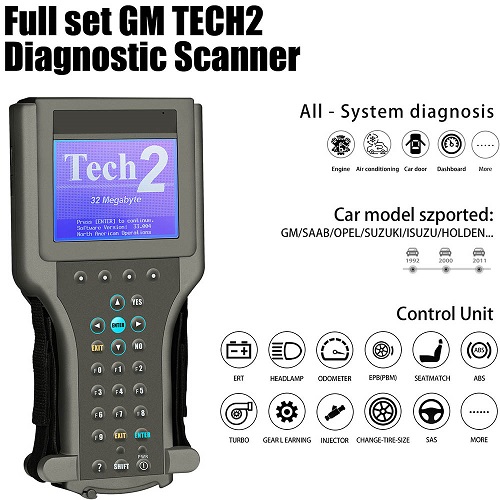
The GM TECH2 Scanner is one of the most trusted diagnostic tools used for GM vehicles, including Chevrolet, Buick, GMC, Cadillac, and Opel models. It allows technicians and car owners to diagnose vehicle faults, read error codes, and perform advanced system programming. However, like any diagnostic tool, users may occasionally face issues while using the GM TECH2 Scanner. Understanding these common problems and how to fix them can save time, reduce frustration, and ensure accurate diagnostics.
This article explores the most common issues with the GM TECH2 Scanner and provides practical troubleshooting solutions to keep your device working efficiently.
GM TECH2 Scanner Not Powering On
One of the most frequent problems users experience is that the GM TECH2 Scanner does not power on when connected to the vehicle.
Check Vehicle Battery and Connection
The GM TECH2 Scanner relies on the vehicle’s OBD or diagnostic port for power. If the car battery is weak or dead, the scanner will not turn on. Always ensure the vehicle battery is fully charged before use.
Inspect OBD Cable and Connectors
A damaged or loose OBD cable can interrupt power flow. Check the cable for cuts, bent pins, or wear and tear. Reconnecting firmly or replacing the cable often resolves the issue.
Verify Ignition Position
Many GM vehicles require the ignition to be in the ON position for the GM TECH2 Scanner to activate. Ensure the key is not just in accessory mode but fully turned on.
GM TECH2 Scanner Not Communicating with Vehicle
Another common issue is when the GM TECH2 Scanner powers on but fails to communicate with the vehicle’s ECU.
Confirm Vehicle Compatibility
The GM TECH2 Scanner supports a wide range of GM models, but older or modified vehicles may have compatibility limitations. Always check if your vehicle is supported before diagnostics.
Check DLC Port Condition
The diagnostic link connector (DLC) must be clean and undamaged. Dirt, corrosion, or bent pins can block communication. Cleaning the port carefully with electronic contact cleaner can help restore connection.
Software Card Issues
The GM TECH2 Scanner uses software cards for different vehicle systems. If the card is outdated or corrupted, communication failures may occur. Reinstalling or updating the software card can fix the problem.
GM TECH2 Scanner Display Problems
Sometimes the scanner powers on but the screen appears blank, dim, or frozen.
Screen Contrast Adjustment
The GM TECH2 Scanner has manual contrast settings. If the display is too dim or blank, adjusting the contrast knob can restore visibility.
Internal Hardware Faults
A frozen or unresponsive screen may indicate internal hardware issues. Restarting the device or reseating internal connections can sometimes resolve this.
Temperature Sensitivity
Extreme heat or cold can affect the LCD display of the GM TECH2 Scanner. Using the device in a stable environment helps maintain screen performance.
GM TECH2 Scanner Error Codes or Invalid Data
Receiving incorrect or unreadable error codes is another issue users may encounter.
Update Diagnostic Software
Outdated software is a common cause of incorrect readings. Ensuring the GM TECH2 Scanner software is up to date helps improve accuracy.
Recheck Vehicle Selection
Selecting the wrong vehicle model or year in the scanner menu can lead to invalid data. Always double-check the correct vehicle configuration before starting diagnostics.
Clear Stored Memory
Sometimes old stored data in the GM TECH2 Scanner can interfere with new readings. Clearing the memory or resetting the device can resolve this issue.
GM TECH2 Scanner Slow Performance
A slow or lagging scanner can make diagnostics difficult and time-consuming.
Remove Unnecessary Files
Too many stored logs or files can slow down the GM TECH2 Scanner. Regularly clearing unnecessary data improves performance.
Check Software Integrity
Corrupted software installations may cause delays. Reinstalling the system software or updating it often restores normal speed.
Use Proper Power Supply
Low vehicle voltage can also reduce scanner performance. Ensure the battery is stable and fully charged during use.
GM TECH2 Scanner Card Reader Not Working
The card reader is essential for loading vehicle-specific software, and failures here are common.
Clean the Card Slot
Dust or debris inside the slot can prevent proper reading. Use compressed air to clean it gently.
Reinsert Software Card
Improper insertion of the software card may cause reading errors. Remove and reinsert it carefully to ensure correct alignment.
Check for Damaged Cards
If the software card is scratched or damaged, the GM TECH2 Scanner will not read it properly. Replacing the card is often the only solution.
GM TECH2 Scanner Connectivity with Candi Module Issues
The Candi module is used for newer GM vehicles, and connectivity issues can arise here as well.
Inspect Candi Cable
Check for loose or damaged cables between the GM TECH2 Scanner and the Candi module. A secure connection is essential for proper communication.
Ensure Correct Mode Selection
The scanner must be set to the correct mode when using the Candi module. Incorrect settings will prevent communication with newer vehicles.
Update Firmware
Outdated firmware can cause compatibility issues with the Candi module. Updating both scanner and module software can resolve this problem.
GM TECH2 Scanner Freezing During Diagnostics
A freezing scanner during use can interrupt the diagnostic process.
Restart the Device
A simple restart often resolves temporary system glitches in the GM TECH2 Scanner.
Avoid Overloading Commands
Sending too many commands at once can overload the system. Perform one diagnostic function at a time.
Check Internal Memory Health
Low or corrupted internal memory may also cause freezing. Resetting or reformatting the system can help restore normal operation.
GM TECH2 Scanner Data Transfer Issues
Problems transferring data from the scanner to a PC or external device can also occur.
Check Serial or USB Connection
Ensure cables are properly connected and not damaged. Loose connections often cause transfer failures.
Install Correct Drivers
Without proper drivers, the GM TECH2 Scanner may not communicate with a computer. Installing updated drivers fixes most transfer issues.
Use Compatible Software
Only use GM-approved software for data transfer to avoid compatibility problems.
Conclusion
The GM TECH2 Scanner is a powerful and reliable diagnostic tool, but like all electronic devices, it can encounter occasional issues. Most problems—such as power failures, communication errors, display glitches, and software issues—can be resolved through simple troubleshooting steps like checking connections, updating software, or resetting the device.